Introduction
This assignment will use concepts taught throughout the course to extend the functionality of the provided tile based game. This assignment will ask you to extend the game with basic, intermediate and advanced features. For CSSE7030 students there will also be an open-ended component.
The assignment will focus on the concept of Graphical User Interfaces (GUIs). You will be requested to implement extra functionality to the base game including extending the GUI for a better game experience.
Note: There will not be a practical interview for the third assignment.
Assignment Tasks
Task Breakdown
CSSE1001 students will be marked out of 20 and CSSE7030 students will be marked out of 25 based on the following breakdown. Sub-tasks/tasks may be attempted in any order.
| Sub-Task | Marks | |
|---|---|---|
| Task 1 Basic Features |
10 marks | |
| App Class |
2.5 marks | |
| Status Bar |
1 mark | |
| Logo |
2 marks | |
| Popup Dialogs | 1 mark | |
| File Menu | 1 mark | |
| Keyboard Shortcuts | 1 marks | |
| Lightning Button |
1.5 marks | |
| Task 2 Intermediate Features |
6 marks | |
| Auto-Playing Game | 3 marks | |
| Loading Screen | 1 mark | |
| High Score Window | 2 marks | |
|
Task 3 Advanced Features |
4 marks | |
| Multiple Game Modes | 2 mark | |
| Objective Game Mode | 2 marks | |
|
Open-Ended CSSE7030 only |
Sophisticated, additional functionality. | 5 marks for CSSE7030; 0 marks for CSSE1001 |
Mark Breakdown
For each task, marks will be awarded proportionately according to the following breakdown.| Description | Marks | |
|---|---|---|
| Code Quality | Code is readable. Appropriate and meaningful identifier names have been used. Simple and clear code structure. Repeated code has been avoided. | 10% |
| Code has been simplified where appropriate and is not overly convoluted. | 10% | |
| Documentation | Documented clearly and concisely, without excessive or extraneous comments. | 10% |
| Functionality | Components are functional, without major bugs or unhandled exceptions. | 70% |
Download the Files
Before beginning work on the assignment you must download
a3_files.zip
provided from the course website.
Inside a3_files.zip,
there should be a file called a3.py. This is the file where you will write your
assignment.
The other files are support files. These must not be edited. Their purpose is
explained below.
Support Code
You have been supplied with a large amount of support code to help you complete this assignment. To begin the assignment, you do not need to understand much of this code. As you progress through the tasks, the degree to which you should understand this code will increase.
| File | Description | Understanding |
|---|---|---|
| a3.py | Main assignment file. | Task 1 |
| play_game.py | Plays a game of Lolo. | Task 1 |
| game_*.py | Concrete modelling & app classes for each game mode. | Task 1: Simple Task 3: Solid |
| colours.py | Mappings of colour names to codes. | Task 1 |
| highscores.py | High score management. | Task 2 |
| view.py | GridView widget. | Task 2 |
| model.py | Abstract modelling classes. | Task 3 |
| tile_generators.py | Concrete tile generator classes. | Task 3 |
| modules/ | Third-party libraries. | Task 3 |
*Note: Ideally, each game type would be in a
subdirectory called game, without the game_
prefix. However, this would add complixity for managing this, so the
prefix was chosen instead for simplicity.
Event Listeners
Note: In this section, the word function is used to mean anything that is able to be called like a function, such as a method, a lambda, etc.
The *Game classes (AbstractGame and its
subclasses) and the GridView
class follow a pattern which allows you to attach a function
to be called when an event is triggered. This can be
referred to as binding to or listening for an event.
This pattern is called the Event Emitter pattern, and is an implementation of the Observer pattern (the Publisher/Subscriber pattern is similar).
While it is also quite a similar approach to how Tkinter handles commands for button presses, the Event Emitter pattern is far more flexible in general.
The events that games and grid views emit are useful in completing the assignment. For task 1 you should consider listening for the select event to appropriately update the score. Postgraduate students are encouraged to consider emitting their own events.
Task 1 — Basic GUI
The purpose of this task is to create the basic graphical user interface (GUI) for the Lolo game. You may choose any one of the supplied games (Regular, Make 13, Lucky 7, Unlimited). There are several sub-tasks that need to be completed for this task. You will be working towards creating the user interface demonstrated below.

Basic GUI
The very first part of this task is to implement a class for
the basic GUI. This class should be named
LoloApp and
should inherit from BaseLoloApp. The BaseLoloApp
class provides some support code to simplify the complex
process of animating.
The title of the window should be set to something appropriate (i.e. Lolo ::
{game_mode_name}
Game). This also applies to any window in subsequent tasks.
As the basic GUI is improved in subsequent tasks, the LoloApp class will need to be modified accordingly.
Status Bar
Define a class named StatusBar, which inherits
from tk.Frame.
This class must display two labels, with the
following text and alignment:
{game_mode_name} Mode(Left)
The name of whichever game mode the player is currently playing. SeeAbstractGame.get_name.Score: {score}(Right)
Must be updated whenever the player's score changes.
Note: For convenience, you should have
two methods, one for each
of the relevant labels:
set_game(game_mode) & set_score(score).
Logo
Define a class named LoloLogo, which inherits
from tk.Canvas. This class must draw a simple logo,
similar to the one seen in examples, made out of canvas
shapes. It does not need to be resizable.
You are encouraged to extend on the complexity of the design but no extra marks will be awarded.
File Menu
Implement a menu bar, with a File menu. The
File menu should have the following entries:
New Game: Restarts the game.Exit: Exits the application.
Note: On Mac OS X, this should appear in the global menu bar (top of the screen).
Dialog
Implement the following dialog boxes:
- Invalid Activation: If the user attempts to activate a tile that cannot be activated, show an error dialog with an appropriate message.
- Game Over: When the game ends, show a dialog informing the user of their score.
Lightning Button
When the lightning ability is active and the user selects a tile, instead of being joined with the surrounding tiles, it should be deleted from the game grid. Doing so uses one lightning.
Place the lightning button below the GridView. When pressed, this button should
toggle the lightning ability. If the user does not have any lightning available, this button should be
disabled. When the lightning ability is active, the button's text should indicate
this to the
user. It should also include the number of lightning the user has remaining.
At the beginning of a game, the user should receive one lightning. Every so often, the user should gain one lightning. This could be implemented in a variety of ways, some more interesting than others, such as:
- Fixed number of turns (i.e. every 20 turns)
- Randomly (i.e. there is a 5% chance of the user gaining a lightning each turn)
- Increasing number of turns (i.e. 5, 10, 20, 40, etc. - $5 \times 2^i$)
- etc.
BaseLoloApp.removefacilitates the proper removal of tiles at arbitrary position(s), similar toBaseLoloApp.activate.
Note: For usability, it is recommended to automatically disable the lightning ability after the user removes a tile from the grid.
Keyboard Shortcuts
Implement the following keyboard shortcuts:
ctrl + n: Start new game.ctrl + l: Activates the lightning ability.
Note: Ideally, cmd
would be used on Mac instead of ctrl.
It is permitted to also
bind to cmd on Mac, however ctrl
must also be implemented.
Task 2 — Intermediate Features
The purpose of this task is to extend the functionality of the basic GUI by adding a loading screen and high score window.
Instead of the basic GUI, the loading screen should be displayed upon launching the game.
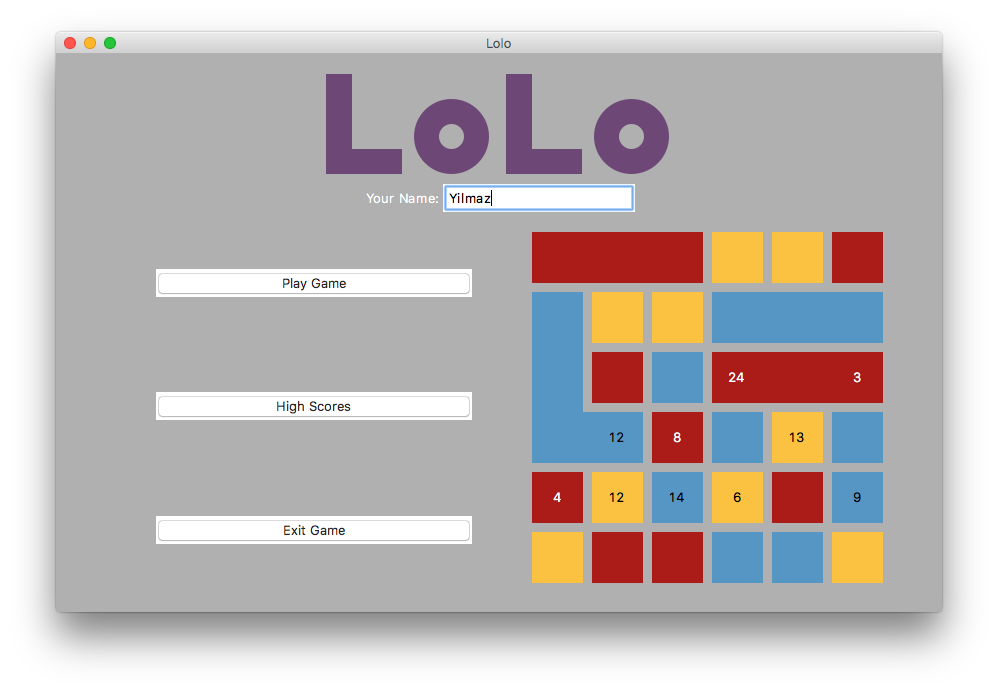

Auto-Playing Game
Implement a class, AutoPlayingGame, which
inherits from BaseLoloApp. This class must be
able to display either a static or automatically played game.
Hint: this can be achieved by initially displaying a static representation of the game, and implementing a method that begins the game playing.
The player should not be able to interact with this class. For automatically played games, a random valid tile should be chosen each move, and the game should restart after the game ends.
Hint: For repeatedly moving, a loop will interfere with Tkinter's mainloop.
AbstractGame'sresolveevent is emitted once a move is resolved (i.e. when the animation is completed), before thegame_overevent. Consider listening to it and performing the next move after a short delay. SeeBaseLoloApp.bind_events.Note: Because
resolveis emitted beforegame_over, if you wish to move immediately and without any delay, you must use.afterwith a delay of 0.
Loading Screen
The loading screen must be the first thing the player sees when they start the game. It must contain all of the components from the example above. You may lay them out however you wish, provided it is reasonable.
Required components:
- Logo: Should be reused from task 1 (see 4.3 Logo).
- Buttons: Play Game, Exit Game, High Scores (performing the appropriate action). Others may be added during Task 3 and Open-Ended Task.
- Name Entry: For recording high scores.
- Auto Playing Game: Randomly playing a game (see auto-playing game above).
High Score Window
The high score window should be displayed in a separate window to the main application. It can be accessed through the button on the loading screen, or through the file menu (a new entry must be added).
The high score window contains all of the components from the example above, laid out as shown.
Required components:
- Best Player: Display the name, score, and a static visual representation of how their game ended (see Auto-Playing Game above).
- Text Leaderboard: display a row of text with the player's name and score for each player on the leaderboard. Name and score should be left-aligned and right-aligned respectively
Task 3 — Advanced Features
Multiple Game Modes
On the loading screen, add a Game Mode button
underneath New Game. When pressed, this should
open a window that allows the user to choose the game mode.
If the user hasn't entered their name yet, they should be
prompted with a dialog box.
The window must have a series of Radiobuttons,
one for each available game mode, with the current game mode
pre-selected. It must also contain a visual example and
the name of the currently selected game mode. The visual example
must update whenever a Radiobutton is selected.
For the visual example, AutoPlayingGame
can be reused here.
Modify New Game so that it
starts a game of the currently selected mode.
Initially, your application must include all of the provided game types (Regular, Make 13, Lucky 7, Unlimited). Any additional game types added must also be included (see objective game mode and open-ended task below).
Objective Game Mode
An objective game mode is an extension of the regular game mode, in which the player has a number of tiles as objectives. The objectives are not a part of the game grid, but should be displayed in their own widget above the game grid.
The player's goal is to join tiles to eliminate each objective tile. For each objective tile, the player must form a tile with the same type and with at least the value of the objective. Once this happens, the objective tile is eliminated, and tile that was joined should be removed from the game grid.
The player may eliminate objective tiles in any order. The game is won only if they eliminate all objectives before the move limit is reached.
Objective game modes should be able to be loaded from a
JSON
file in the following format:
The objectives and number of moves remaining should be displayed above the game grid (i.e. in the StatusBar).
{
    "mode": "objective",
    "min_group": 3, // the minimum number of tiles to form a group
    "types": 4, // the number of tile types
    "size": [6, 6], // the number of [rows, columns]
    "starting_grid": ..., // optionally defines the starting grid
    "objectives": [...], // a representation of the objective tiles
    "limit": 90, // the number of moves the user can make
}
The game grid should be randomly generated unless the starting_grid
key is present. For starting_grid & objectives,
it may be useful to use a similar representation as HighScoreManager
does (see highscores.json).
Open-Ended — CSSE7030 Only
This task is only required for CSSE7030 students. CSSE1001 students are permitted to attempt this task, but will be not be awarded marks for it.
This task is open ended. It is up to you to decide what to do for this task. Marks will be awarded based on the sophistication of the features you choose to implement. Ensure that you consult with course staff before you commence this task to ensure that the features are sufficiently sophisticated.
You are encouraged to utilize extra Python modules to help you implement your desired functionality.
You must also submit a brief PDF
describing the features you have implemented for this task,
named description.pdf.
This file must be in PDF format; marks will be deducted if
you submit another format (such as .txt or .docx, for example).
This file should also contain an outline of any third party
Python modules you have used, and instructions on how to
install them. For example if you have used Pillow module, then the
following would be sufficient:
Install the Pillow module with pip using the command:It is also helpful to provide information on the specific version of any third-party libraries used.
pip install Pillow
Suggestions
- Saving and loading a game
- Background music/event sounds
- Additional custom game modes
- Various animations
- Multiplayer (local or network)
Assignment Submission
Your assignment must be submitted via the assignment three
submission link on Blackboard.
You must submit a zip file, a3.zip,
containing a3.py and all the files required to
run your application (excluding the support code). You should not have
made modifications to any of the support files. If you are a CSSE7030
student, this zip file must also contain your description.pdf file.
Late submission of the assignment will not be accepted. In the event of exceptional circumstances, you may submit a request for an extension.
All requests for extension must be submitted on the UQ Application for Extension of Progressive Assessment form: http://www.uq.edu.au/myadvisor/forms/exams/progressive-assessment-extension.pdf at least 48 hours prior to the submission deadline. The application and supporting documentation must be submitted to the ITEE Coursework Studies office (78-425) or by email to enquiries@itee.uq.edu.au.
Change Log
Version 1.0.1 - May 12
- Status Bar: Fixed typo to indicate that only the two indicated labels are required.
- High Score Window: Fixed typo that repeated the required components from loading screen.
Version 1.1.0 - May 18 (formerly 1.0.2)
- Basic GUI: Mandated window title.
-
- Expanded requirements for lightning button.
- Added
BaseLoloApp.removeto aid in implementing lightning button. - Updated screenshot of Basic GUI Example to include lightning button.
- Replaced error dialog logic in
BaseLoloApp.activatewith raising ofIndexError(error dialog logic must be implemented by students inLoloApp.activate). - Decreased the default tile size of
GridViewto accommodate smaller screen sizes. - Added the
get_namemethod toAbstractGameand its subclasses to simplify retrieval of the name of a game (see status bar). - Replaced
increase_scoremethod ofAbstractGamewithset_scoremethod.
Version 1.1.1 - May 20
- Fixed missing internal links.
Version 1.1.2 - May 28
- Fixed typos:
BaseLoloApp.score: Docstring & parameter nameLoloGrid.find_connected, .find_all_connected, AbstractGame.find_group, .find_groups: Return/yield type in docstring- Corrected inconsistency with Game/Mode between description & example in status bar
- Removed irrelevant examples from suggestions
- Clarifications:
- Intention of Lightning Button, also in keyboard shortcuts
- Intention of Objective Game Mode
- Recommended version information for third-party libraries in CSSE7030 task
- Moved lightning button after dialog
- Added score reset to
AbstractGame.reset - Added
AbstractGame.de/serialize - Fixed bug in
Lucky7Gamethat unlocked max tile - Documented
AbstractGame'sresolveevent in
Note: No further breaking changes will be made to the support code after 1.1.0 (except for bug fixes).